
Retirement Living takes an unbiased approach to our reviews. We may earn money when you click a partner link. Learn More
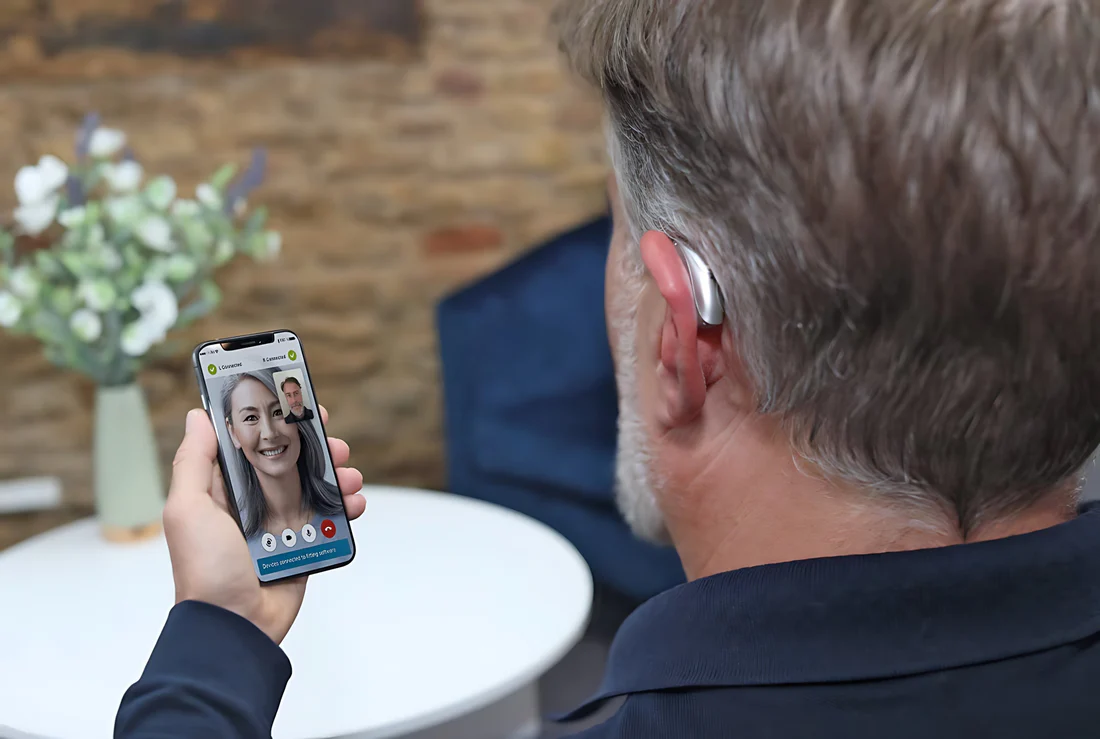
How to Connect a Hearing Aid to Bluetooth
Setting up a Bluetooth connection between your hearing aids and other devices (smartphones, tablets, desktops, etc.) is as simple as putting both devices in pairing mode, downloading any necessary apps for compatibility, and activating the connection in the Bluetooth settings.


Updated:
At a glance:
- For senior hearing aid users, Bluetooth technology allows you to stream phone calls and music directly from connected devices, check battery life, and access advanced features like language translation, health monitoring, and fall detection.
- The step-by-step connection process for hearing devices varies by hearing aid manufacturer and by whether you’re connecting to an Apple, Android, or Windows system.
- The easiest troubleshooting fix for Bluetooth hearing aids is to restart both the hearing device and mobile phone or computer, but you may also need to visit an audiologist to remedy persistent sound quality or connection issues.
So your hearing care professional has recommended Bluetooth hearing aids, and you’re not sure where to get started. Luckily, for seniors with mild to profound hearing loss, Bluetooth offers a simple way to stream audio directly to your earpiece from any compatible device.
Of course, depending on your specific hearing aid brand and the device you’re trying to connect to, the exact connection method varies. Below, we outline step-by-step instructions for setting up Bluetooth streaming on compatible devices so you can enjoy better hearing to the fullest.
How Do Bluetooth Hearing Aids Work?
Similar to wireless earbuds, Bluetooth hearing aid technology uses low-energy radio waves to stream sound directly from one device to another—no cords required. This helps seniors with hearing loss bypass distracting or uncomfortable background noise. It also simplifies communication by providing access to hands-free calls and more personalized volume controls.
Examples of hearing aid manufacturers that offer Bluetooth features include Phonak, Oticon, Widex, ReSound, and more. Just keep in mind that certain brands may only be compatible with certain devices. For instance, Phonak and ReSound tend to offer broader compatibility across iOS and Android, while brands like Oticon and Widex focus more heavily on seamless Apple integration.
Activating Pairing Mode On Bluetooth-Enabled Hearing Aids
The first step toward a proper Bluetooth connection is knowing how to enable pairing mode on your hearing aid. Both battery-powered and rechargeable hearing aids should show up as a pairing option after a simple restart or charge.
- Battery-powered: Try opening and closing the battery compartment to reset the hearing aid.
- Rechargeable: Plug the device into a charger for a moment and then remove it.
After these steps, pairing mode should activate for at least 2–3 minutes, allowing you to connect to another Bluetooth device. Reliable hearing aids will also include a user manual with more specific instructions.
How To Connect Hearing Aids To Phones
Pairing your Bluetooth hearing aids to your smartphone starts with knowing what kind of devices you have. This is because while Apple and Android phones connect in similar ways, the exact process for both is slightly different:
Pairing Hearing Aids With Smartphone Apps
Depending on your phone type and hearing aid manufacturer, you may need to download a free app to access the full spectrum of Bluetooth features. All of the brands we mentioned previously have apps available on both the App Store (iPhone) and Google Play (Android).
While Bluetooth is activated, these apps act as a digital remote control that allows you to adjust volume levels, switch between listening programs for different environments, and fine-tune settings like bass and treble. Some apps also include extra features like tracking misplaced hearing aids and monitoring battery life.
Connecting To An iPhone
To enable Bluetooth streaming between your iPhone and Made-for-iPhone (MFi)-compatible hearing aids, follow these simple steps:
- Locate the Settings > Bluetooth and make sure capabilities are turned on.
- Open the corresponding hearing aid app and put your hearing aids in pairing mode
- Select your hearing aids when they appear as a pairing option under your phone’s attempted Bluetooth connections.
- Follow any on-screen prompts to start Bluetooth streaming.
Connecting To An Android Device
Connecting your hearing aids to an Android phone follows similar steps, though the Bluetooth function is a button located both on the notification panel and within system Settings.
- Enable Bluetooth using the button on the notification panel. A pop-up will appear with a list of connected and available devices.
- Put your hearing aids in pairing mode.
- Locate your hearing aids on the list of available devices on your phone, then select them to start the connection process.
- Follow any on-screen prompts to start Bluetooth streaming.
Bluetooth Streaming Guides For Other Apple Devices
All modern Apple devices have some level of Bluetooth integration, allowing you to stream audio directly from MacBooks, iPads, Apple Watches, and more. Simply confirm that your hearing aids are Made-for-iPhone (MFi) compatible, as stated in their user manual.
Following that, here are some basic connection instructions for each device:
MacBook
- Open the Apple menu and navigate to System Settings or System Preferences > Bluetooth to make sure it’s turned on.
- Find your hearing aid app and navigate to Settings > Accessibility > Hearing Devices. Then put your hearing device in pairing mode.
- Select the hearing aids when they appear on the list of devices, either on your computer or within the App.
- Follow any remaining on-screen prompts, and your MacBook will notify you when pairing has been successful.
iPad
- Go to your iPad Settings > Bluetooth and turn on the function.
- Navigate to Settings > Accessibility > Hearing Devices in your hearing aid app, then put them in pairing mode.
- Select your hearing aids from the list of available devices either in iPad Settings or in the App.
- Follow any remaining on-screen prompts, and your iPadwill notify you when pairing has been successful.
Apple Watch
While Apple Watches don’t generally connect directly to hearing aids via Bluetooth, they can serve as a remote control for Bluetooth features on other Apple devices. Use the connection to adjust volume, switch between audio streaming apps, receive incoming phone calls and messages, listen to GPS audio, and more.
Here is the step-by-step process:
- Pair your hearing aids with your iPhone by opening Settings on your iPhone and navigating to Accessibility > Hearing Devices, then following the pairing instructions.
- Sync hearing aidcontrols to your Apple Watch so the watch can receive notifications and offer personalized controls through supported apps.
How To Pair Hearing Aids With Other Bluetooth Devices
On top of phones and Apple devices, you can often connect Bluetooth hearing aids to smart TVs and Windows systems as well. Below, we outline the connection process for both:
Connecting To The TV
With Bluetooth hearing aids, you can improve your viewing experience by streaming audio directly from your smart TV. Most modern smart TVs support Bluetooth connectivity, though the exact steps may vary slightly depending on your TV’s brand and model:
- Go to your TV’s Settings and select Bluetooth, which is usually found under a Sound, Remote & Accessories menu.
- Turn on Bluetooth and set your hearing aids to pairing mode.
- Select your hearing aids when they appear on the list of available devices on your TV screen.
- Follow any on-screen prompts to complete the connection. Once paired, your TV will typically remember your hearing aids for future connections.
Please note that if your smart TV doesn’t support Bluetooth functionality on your hearing aids, you can also plug a separate Bluetooth transmitter into the TV’s audio output jack.
Connecting To Laptops & Desktops
If you’re using a Windows PC, pairing your Bluetooth hearing aids is a straightforward process. Just keep in mind that your specific hearing aids will need to support standard Bluetooth connectivity rather than the MFi protocol required for Apple devices:
- Open the Start menu, navigate to Settings > Bluetooth & Devices, and ensure Bluetooth is turned on.
- Put your hearing aids in pairing mode.
- Click “Add Device” and select Bluetooth from the list of options. Your hearing aids should appear as an available device.
- Select your hearing aids and follow any on-screen prompts to complete the pairing.
Troubleshooting Failed Bluetooth Connections
If your hearing aids can’t connect to other devices or frequently drop their connection, there are several common causes. Luckily, most of these are a simple fix:
- Check your distance: Bluetooth is most effective within 30 feet, so moving too far from your phone, TV, or computer while wearing your hearing aids can weaken or drop the connection. Try ensuring both devices are closer when you attempt to reconnect.
- Reduce interference: Sometimes other wireless devices, such as Wi-Fi routers and microwaves, can interfere with your Bluetooth connection. Try turning off nearby wireless networks you’re not using, or move away from congested, tech-heavy public areas to improve the connection.
- Restart connected devices: “Turning it off and back on again” is well-known for a reason. Try restarting both your hearing aids and other Bluetooth devices before attempting to pair again.
- Re-pair devices: Remove your hearing aids from the list of saved, connected devices so you can restart the pairing process from scratch.
- Check for software and firmware updates: Outdated software on either your hearing aids or your paired device can cause compatibility issues. Check your hearing aid app for any available firmware updates, and make sure your phone or computer’s operating system is up to date.
- Check battery levels: A low battery on any device can cause unstable Bluetooth performance, so make sure everything is sufficiently charged or fitted with new batteries before you try other solutions.
- Disable and re-enable Bluetooth: Sometimes simply toggling Bluetooth off and back on can refresh the connection and resolve minor pairing errors.
If you find that none of the tips above resolve your connection issue, consider reaching out to your hearing aid manufacturer’s customer support or consulting your audiologist. Professionals can help you solve deeper technical issues.
The Bottom Line: Connecting Bluetooth Hearing Aids Is Simple and Easy to Manage
Connecting Bluetooth hearing aids to Apple, Android, and other wireless devices is generally simple and easy to troubleshoot at home. In most cases, you just need to navigate to system settings, ensure Bluetooth/pairing mode is enabled on both devices, and then select the hearing aids from the available devices menu to pair them. After the initial pairing, they should pair automatically in the future.
Frequently Asked Questions (FAQs) About Connecting Hearing Aids to Bluetooth
No, not all hearing aids are Bluetooth-enabled. It’s often a feature found in newer, more advanced models, so we recommend asking your audiologist about the best hearing aid options available to you.
Most Bluetooth hearing aid manufacturers make their devices compatible with both Apple and Android devices, though the level of integration varies by brand and model. For instance, some hearing aids are designed using Apple’s Made-for-iPhone (MFi) standard, which can expand features on Apple devices but limit them on Android.
Yes, streaming audio via Bluetooth will consume more power. If battery life becomes a concern, consider turning off Bluetooth when it isn’t needed.
You can pair your hearing aids with multiple devices, but, with the exception of Apple Watches, they can usually stream audio from only one device at a time.
You can stream anything from phone calls to music, podcasts, and videos directly to your hearing aids from paired devices. This makes it easier for seniors with hearing loss to enjoy better sound quality day to day.
Yes, Bluetooth hearing aids are considered safe for everyday use. They operate using low-energy radio waves that are well within established safety guidelines.
Help us improve our cost data! Email your latest hearing aids quote to [email protected]. Rest assured, your personal details will remain completely confidential.